Home › Features › Search, tags & favorites
Search, tags and favorites
A vault is only useful if you can find things. Search runs on your phone over your decrypted list, and nothing is sent anywhere.
The 5-second moment
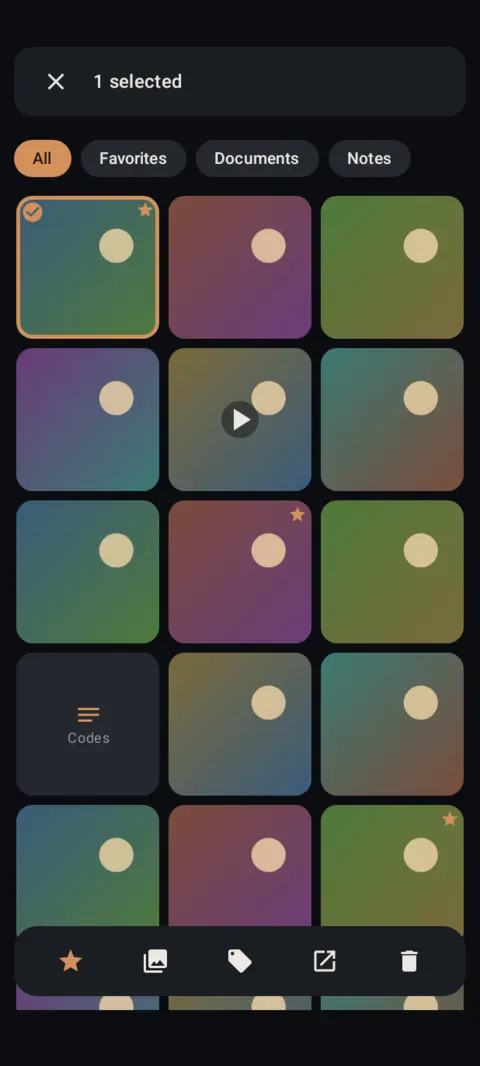
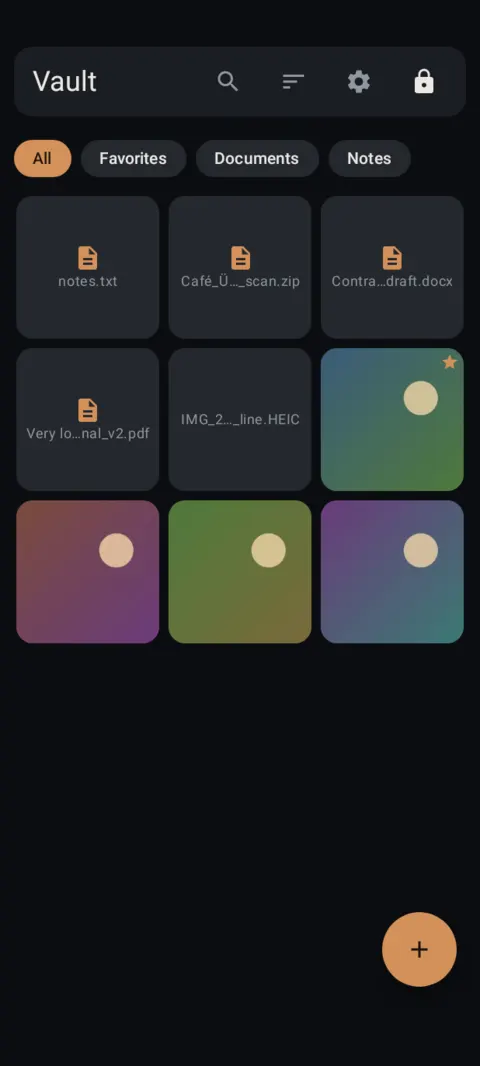
Select, tag, and find it later by #tag, type or date.
 Free on Google Play. No account, no ads, no tracking.
What it does
- Search by name, album, #tag or type, for example
type:video. - Date filters: Any time, 7 days, 30 days, This year, or pick your own dates.
- Star items in the viewer and open them from the Favorites chip.
- Sort by newest added, oldest added, date taken or name.
- Documents and Notes have their own chips.
How to use it
Menu names are exactly as they appear in Lockstone 1.1.1. The gear icon at the top right of the Vault screen opens Settings.
- Tap the search icon at the top of the Vault screen.Type a name, an album, a #tag or type:video.
- Narrow by date.Tap Any time, 7 days, 30 days, This year or Dates….
- Tag several items.Long-press to select, tap the Tags icon, type a New tag and tap Apply.
- Star a favorite.Open an item and tap the star. Find it under the Favorites chip.
- Change the order.Tap the sort icon: Newest added, Oldest added, Date taken or Name.
Items in a locked album don't appear in search or tags until you open that album.
Free Included in the free plan. See plans.
Questions
Does search send anything online?
No. Lockstone has no internet permission. Search runs over the vault's encrypted index on your phone.
Can I search inside PDFs?
Not yet. Search matches names, albums, tags, types and dates.
Do tags survive a backup and restore?
Yes. Tags, albums and favorites are part of each item's encrypted record, which backups include.
Related features
Related guides
Prefer to watch? See the how-to videos.
No account. No ads. No tracking.
Lockstone is free for up to 100 photos and 10 videos per vault, with every security feature included.