Home › Features › Calculator disguise
Calculator disguise: a vault that looks like a calculator
Optional and off by default: Lockstone's icon and name become a calculator that really works. Your code plus = opens the unlock screen.
The 5-second moment
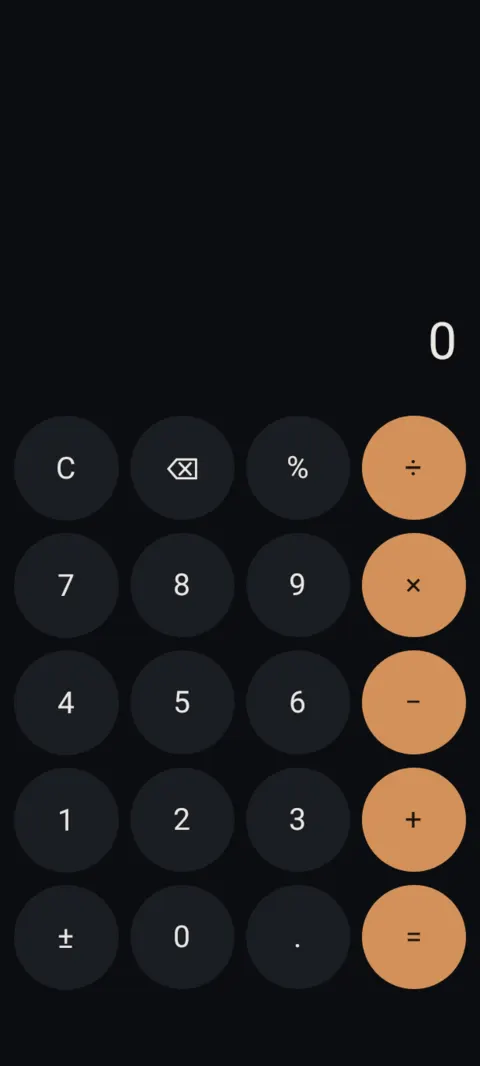
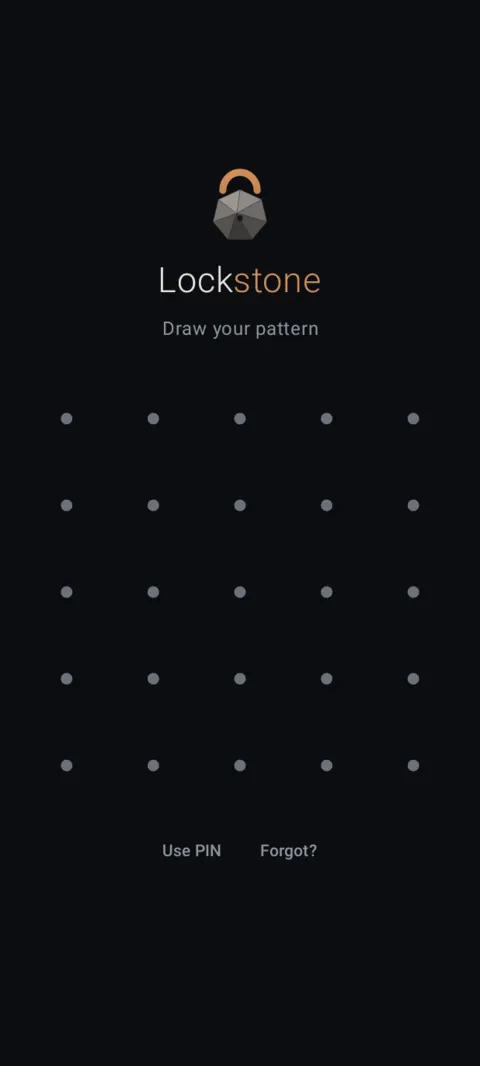
A working calculator. Type your code, press =, and the unlock screen appears.
 Free on Google Play. No account, no ads, no tracking.
What it does
- Your home-screen icon and recent-apps entry become “Calculator”, with a calculator icon.
- It's a real calculator: anyone can do sums with it.
- Type your code (4 to 12 digits) and press = to reach the unlock screen. Your pattern is still required.
- Lockstone's real name still appears in your phone's Settings › Apps, as Android requires.
- Reversible any time from Settings.
How to use it
Menu names are exactly as they appear in Lockstone 1.1.1. The gear icon at the top right of the Vault screen opens Settings.
- Open your real vault and tap the gear icon.Scroll to Settings › Disguise.
- Type a calculator code and tap Save.Use 4 to 12 digits you'll remember.
- Turn on Calculator icon.Read the dialog and tap Turn on.
- Open Lockstone from now on as “Calculator”.Type your code, press =, then draw your pattern.
- Switch back any time.Settings › Disguise › turn Calculator icon off.
The disguise hides the icon, not your files. Your pattern and encryption are what protect them.
Free Included in the free plan. See plans.
Questions
Is the calculator real?
Yes. It does normal arithmetic, so it behaves like any calculator app.
What if I forget my calculator code?
Open Lockstone from your phone's Settings › Apps list, or turn the disguise off from inside the vault once you're in.
Can I undo the disguise?
Yes. Settings › Disguise › turn Calculator icon off and the Lockstone icon returns.
Does it cost extra?
No. The disguise is free, like every security feature.
Related features
Related guides
Prefer to watch? See the how-to videos.
No account. No ads. No tracking.
Lockstone is free for up to 100 photos and 10 videos per vault, with every security feature included.